
 Find a branch
 Contact
 Help
Help
How do I set up alerts?
You can set up alerts under the Profile menu in Westpac One® digital banking.
In the app:
- Go to More from the menu, then choose Profile

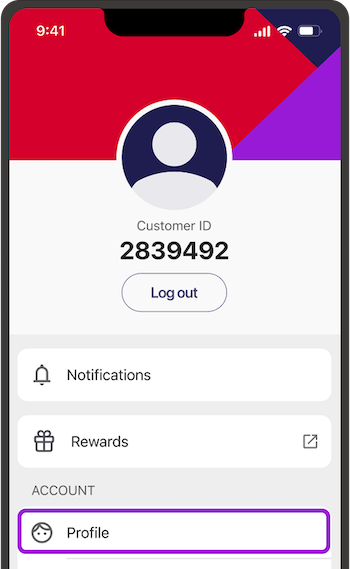
- Select Alerts

- Select Accounts for balance alerts or General for payment and login alerts. The security alerts under the Default menu can't be turned off.
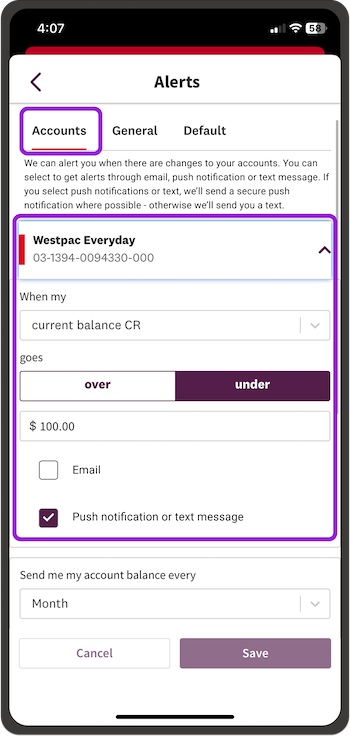
For Accounts alerts, choose the account, then:
- For an alert when your balance goes over or under a set amount,
- Select over or under, then type in the $ Amount
- Select Email, Push notification or text message, or both
- Then Save
- For balance updates, select Send me my account balance
- Choose how often you’d like to receive them: Month, Weekday, Saturday and Sunday, Week or Fortnight
- Choose a date under starting from
- Choose the time you’d like to receive the alert
- Select Email, Push notification or text message, or both
- Then Save
For General alerts, you can choose to be alerted for the following:
- When there has been a login to my Westpac One
Select Email, Push notification or text message or both. Then Save - If a payment over < $> is made
Type in the $ Amount, select Email, Push notification or text message, or both. Then Save - When a planned payment fails
Select Email, Push notification or text message, or both. Then Save
- When an automatic payment fails
Select Email, Push notification or text message, or both. Then Save - When a loan payment fails
Select Email, Push notification or text message, or both. Then Save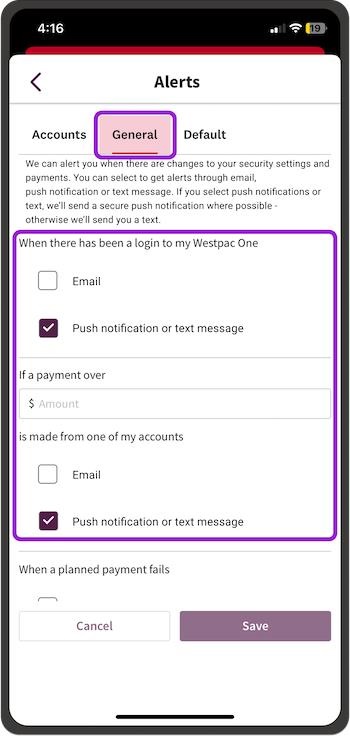
In online banking:
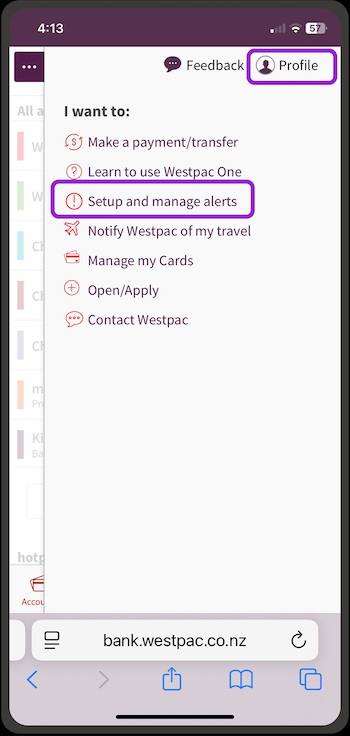
- If you’re on a computer, select Profile and then Alerts.
If you’re on a phone browser, select the three dots from the top right of the screen, then under I want to: select Setup and manage alerts.


-
Choose Accounts for balance alerts or General for payment and log in alerts. The security alerts under the Default menu can’t be turned off.
For Accounts alerts, choose the account, then:
- For an alert when your balance goes over or under a set amount
- select over or under, then type in the $ Amount
- Select Email, Push notification or text message, or both
- Then Save
- For balance updates select Send me my account balance
- Choose how often you’d like to receive them: Month, Weekday, Saturday and Sunday, Week or Fortnight
- Choose a date under Starting from
- Choose the time you’d like to receive the alert under at
- Select Email, Push notification or text message, or both
- Then Save
For General alerts – to be notified:
- When there has been a login for my Westpac One
Select Email, Push notification or text message, or both.
Then select Save at the end of the page - If a payment over <$> is made
Type in the $ Amount
Select Email, Push notification or text message, or both.
Then select Save at the end of the page - When a planned payment fails
Select Email, Push notification or text message, or both.
Then select Save at the end of the page - When an automatic payment fails
Select Email, Push notification or text message, or both.
Then select Save at the end of the page
- When a loan payment fails
Select Email, Push notification or text message, or both.
Then select Save at the end of the page
Top tips.
- Check your email and phone details are up to date to make sure you get your alerts.
- To check or change your details, select Profile then Personal Details and Edit.