
 Find a branch
 Contact
 Help
Help
How do I upload a payment file in Westpac One Business?
Upload a payment file, create payments from it, and approve the payments or send these payments for approval.
Upload a payment file.
- From the left-hand menu, select Payments and transfers, then Payment files.
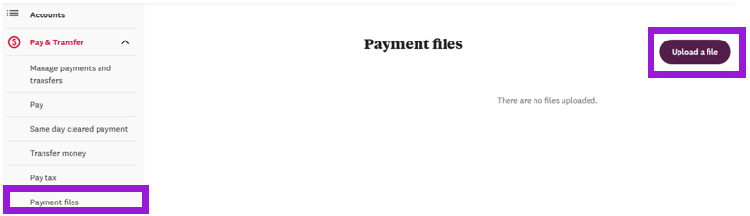
- Select Upload a file.
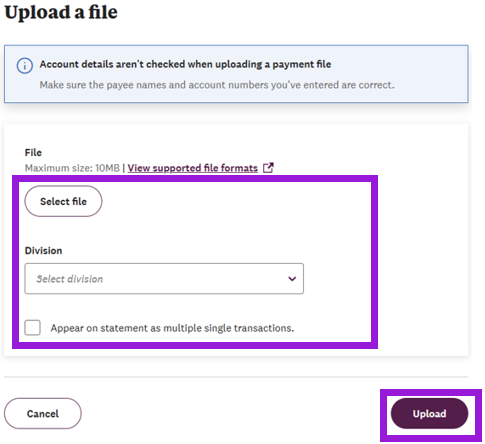
- Click Select file and choose a file from your computer.
- The file name and size will appear on the screen. If the file is less than 1KB, it will show as 0KB.
- Optional settings:
- To show each payment as a separate transaction on your statement, select Appear on statement as multiple single transactions.
- Select Upload when ready.
- The file status will show as Validating while it’s being checked.
- When validation is complete, the status changes to Review needed.
- Review the file and any warnings or errors. Then choose:
- Reject to fix issues and upload again.
- Confirm to create the payments.
Note: If you’re authorised to approve payments, clicking Confirm creates and approves payments at the same time. Payments will then process once all required authorisers approve.
- After you confirm, the status will change to Uploading and you’ll see a confirmation message.
- When payments are created, the status will change to Uploaded and you’ll see how many payments were made.
- At the bottom of the screen, you’ll see the status of each payment:
- If you can approve payments, the status is Scheduled.
- If someone else needs to approve, the status is Other approval needed.
- When the upload process is finished, the status is Payments uploaded.
- If you can approve payments, go to Manage payments and transfers and select Your approval.
- You’ll need to approve payments one at a time. You can’t approve multiple payments at once.
Supported file formats.
You can upload payment files created by accounting, practice management, or other software. You can upload these formats:
- Payment Fixed length (COL Fixed Length/ Deskbank Fixed Length)
- Payment CSV (COL CSV/ Deskbank CSV)
- BACHO
- PAIN008 V2
- PAIN001 V3
- Qvalent NZ Payment Import CSV
- Qvalent Flat File
Note: The PC1 file format used in Business Online is no longer supported.
Payment file statuses.
The status of the payment file will display on the screen and update through the file upload and payment creation process.
- Validating - File is being checked to make sure it's in the correct format and can successfully be uploaded into Westpac One Business.
- Review needed - Details of the file can be reviewed and the person who uploaded the file can choose to reject or upload the file.
- Uploading payments - The file is in the process of being uploaded, and payments are being created.
- Payments uploaded - The file has been uploaded, the payments have been created, and the approval workflow has been initiated, if required.
- Rejected - The file was rejected by the person who uploaded it.
- Failed - There is an issue with one or more payments that has prevented the file from being uploaded successfully. An error message will appear with additional information.
Note: Even if the file status is failed, one or more payments may have been created and need to be reviewed and approved.
What's different from payments import in Business Online?
How this process compares to payments import in Business Online:
- You don’t need to set up an import profile or choose a file format.
- Westpac One Business automatically detects and validates your file format.
- Westpac One Business supports the same formats as Business Online.
