
 Find a branch
 Contact
 Help
Help
How do I split my incoming money into different accounts in the Westpac One® app?
To automatically split your incoming money into different accounts as it comes in, set up a Split from Pay/Transfer in the app. You decide how much of your money goes into each account and you can pause or adjust it any time. Here's how to set up a Split and start saving:
In the app:
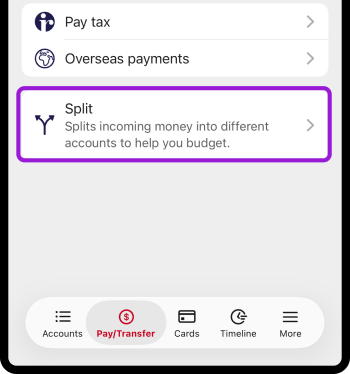
- Go to Pay/Transfer from the bottom menu
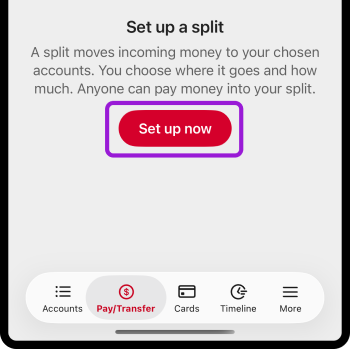
- Choose Split, then Set up a split
- Type in a Split name
- Choose Select an account. Money you receive will split into the accounts you select
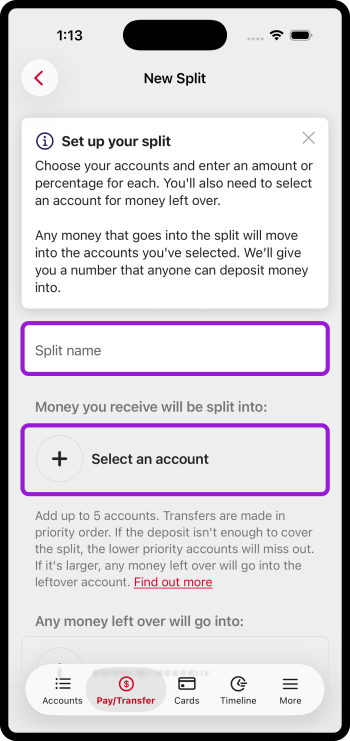
- Under Split amount, enter the amount to go into that account
- If you’d rather Split by percentage, select the switch to turn it on
- Enter a percentage for your split and choose Confirm
- To add another account to split your income into, choose Select an account
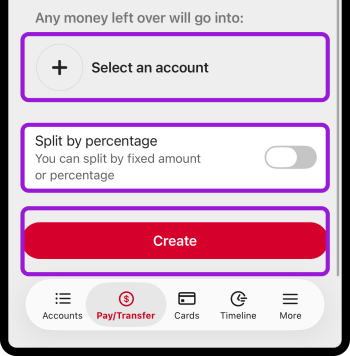
- Under Any money left over, choose the account you want any money left over to go to
- When you’ve chosen the accounts you want your money to go to and the account your leftover money goes to, choose Create
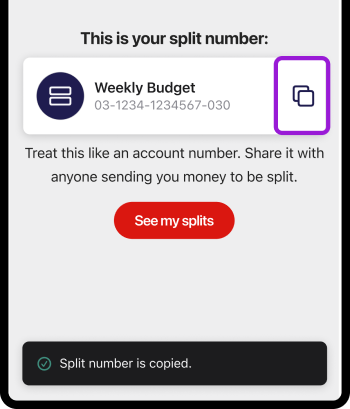
- Share your new split number with your employer and anyone else who sends you money:
- Go to Pay/Transfer
- Choose Split
- Choose your new split from the list under Active split
- Choose the copy icon next to the split name to copy the account number and send to anyone paying you money
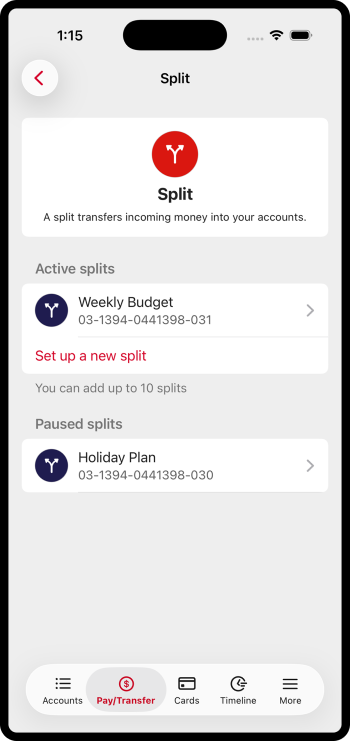
Your Split is all set and money paid into your Split account will be moved the way you want it automatically, as soon as it arrives.
Overseas payments.
Payments from overseas will not be split.
Where overseas payments cannot be allocated according to your split settings, they will be deposited into the account with the lowest suffix within your Split settings.
If two accounts share the same lowest suffix, the funds will be deposited into the account with the higher priority in your Split settings.
My Split is not working.
Make sure you are using the latest version of the app.
If your money isn’t being split as expected:
- Check the payment went to your Split number. Go to Pay/Transfer, choose your Split, then check the screen for the number
- Go to Pay/Transfer, choose your Split, then check that it is active and set to move money to the accounts you’re expecting
If everything looks good and you're still having issues, contact us.
Learn more.
- Split
- Change or pause your split
- More app and online banking how-to guides
Things you should know.
Split is only available in the version of the Westpac One app released in September 2026. You may need to update your app to use it.
Make sure you use your new Split number for any incoming money you want to split between your accounts.
Your Split won’t affect any of your automatic payments or direct debits.
Split can only send money to your Westpac accounts. You can send money to joint accounts where you're an authorised signatory.
You can split your money into as many as five different accounts and any leftover will go into the leftover account. You can set up as many as 10 different splits.
When you set up a Split, you choose the order your money is allocated to each account. If the incomings aren’t enough to cover all Split amounts, the money will be allocated in that order.
If you're an authorised signatory on an account, it may be available to add to your split, even if it is not listed in your Westpac One. Moving money to it as part of your split won’t give you access to view or manage the account.
