
 Find a branch
 Contact
 Help
Help
How do I edit a user's details and roles in Westpac One Business?
You can edit a user’s email, certain roles, transactions and limits, and select if they can upload and view confidential payments. If you want to give or return the Approver or Admin role to a user, you’ll need to fill out a Westpac One Business Change Request Form.
Edit a user's email.
- From the left-hand menu, select Manage, then select Users.
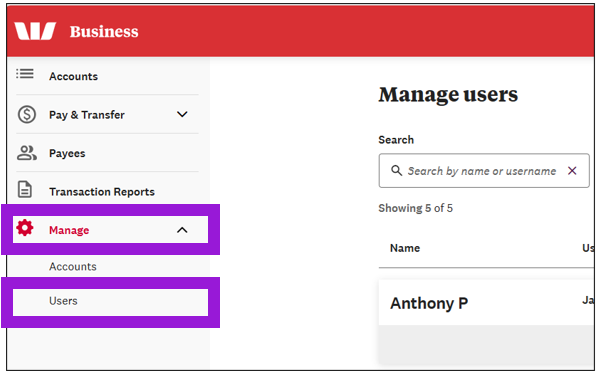
- Search for the user, then select Edit.
- Under User details and update the address in the Email field.
- When you're done making changes, select Save.
Edit user roles.
- From the left-hand menu, select Manage then Users.
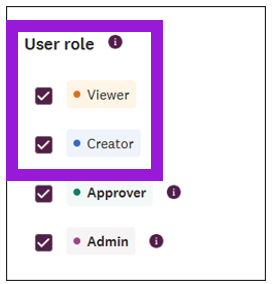
- Under User Roles you can:
- Select Viewer or Creator to give that role to the user
- Deselect either of these roles to remove it from the user.
- Note: If you want to give or return the Approver or Admin role to a user, you’ll need to fill out a Westpac One Business Change Request Form.
Edit transactions, limits, and confidential payments.
- From the left-hand menu, select Manage then Users.
- Search for the user, then select Edit.
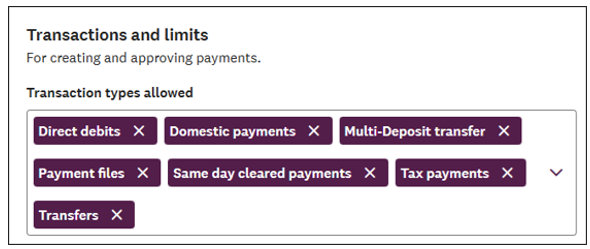
- Scroll down to Transactions and limits.
- To add a new transaction type , select the arrow under Transaction type allowed, then pick the transaction type from the list.
- To remove a transaction type select the x next to the transaction type.
- To change the limit per payment or the total daily limits for the user, select the arrow and pick the new domestic and international limits from the list.

-
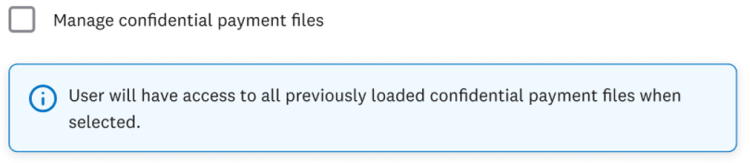
Select or deselect Manage confidential payment files.
-
If selected, the user can upload confidential payment files and will see all previously uploaded confidential payment files.
-
If not selected, the user can’t upload or see any confidential payment files.
Note: Confidential payment files always show as a single transaction, so the user will see the total of all payments, not the individual payment amounts.
-
- When you're done making changes, select Save.
