
 Find a branch
 Contact
 Help
Help
How do I create a transaction report in Westpac One Business?
Create a report showing the transactions from an account during a specific time period.
Create transaction reports.
- Go to the account you want to create a report for.
- Search and filter the transactions you want to include in the report. The default setting includes all transactions from the past 7 days.
- Select Create report.
- Select the format of the report. Options include:
- Statement transactions PDF
- Statement transactions ddmmyy
- Statement transactions ddmmyyyy
- Statement transactions CSV
- Statement transactions QIF
- Westpac Account statement ddmmyy
- Westpac Account statement ddmmyyyy
- Other Party Details PDF
- Other Party Details CSV.
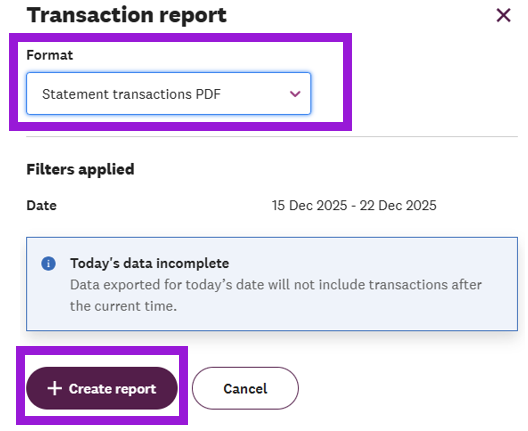 Note: The report will only include transactions up until the time the report was created. To include all transactions from a specific day, run the report on the following day.
- Select Create report again.
- A confirmation message will appear when the report starts generating. Select the X in the message to close it.
- To view and download the report, select Transaction reports on the left-hand menu. Find the report in the list that you want to export, then select the Download arrow on its row.
- Make sure to download the report within 24 hours of its creation. After 24 hours it will disappear from the list, and you'll need to create the report again.